Captured the moment you go live. Editable the moment you stop.
Recording runs on our servers, not on your machine. Trim it, chapter it and publish it right in the browser: no exporting, no render queue, no separate software.
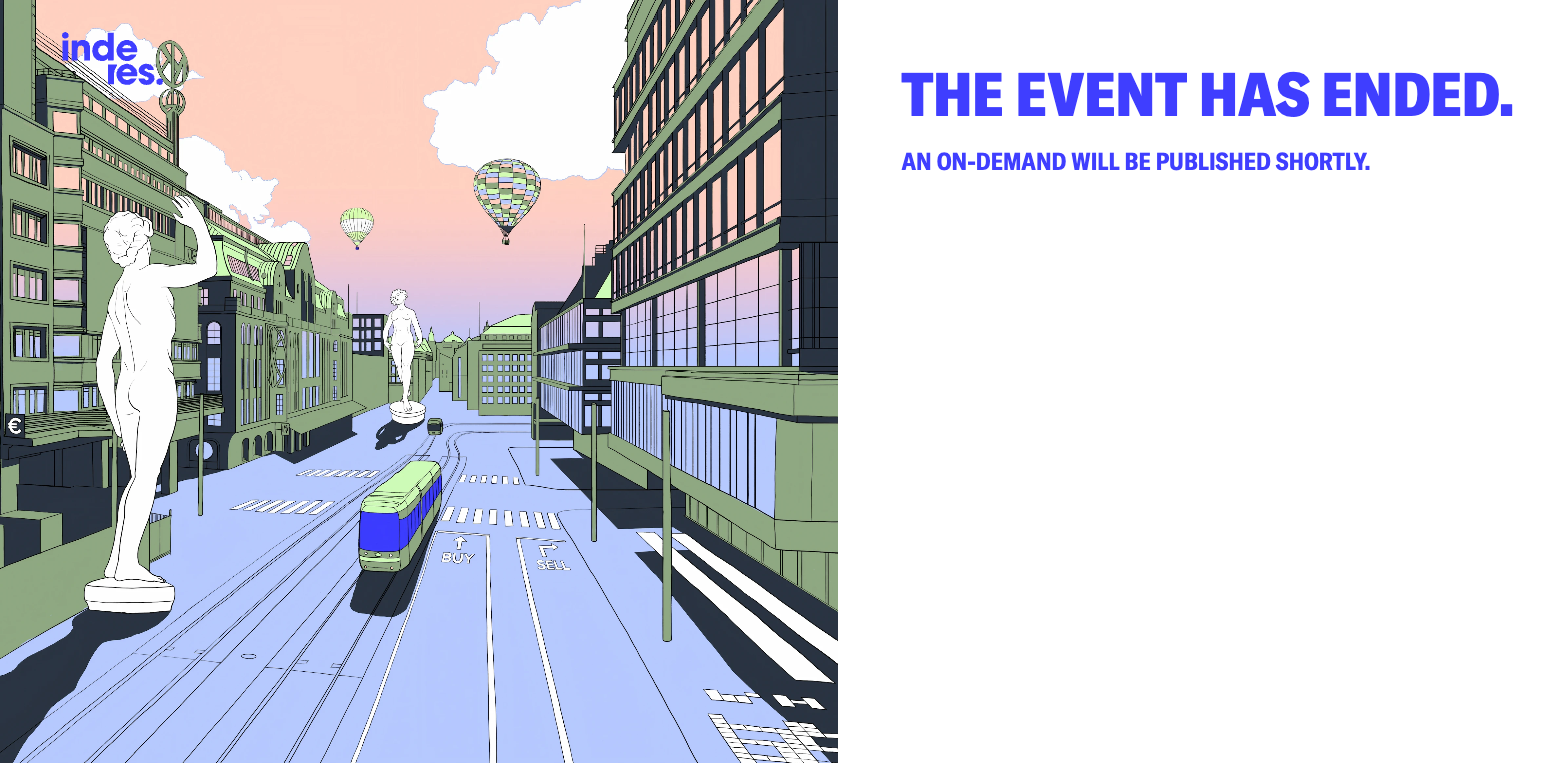
The replay lives where the live event was
Nobody has to be sent a new link. When the event ends, the recording appears on the same page the audience already watched on, with the slides, the chapters and the transcript alongside it. Anyone who arrives late, or comes back a month later, lands in the same place and finds the whole event waiting.
Because it is one page, it is also one set of numbers. Live viewers and on-demand viewers land in the same analytics, so the reach of an event is what it earned in total, not a live figure and a replay figure you have to add up yourself.
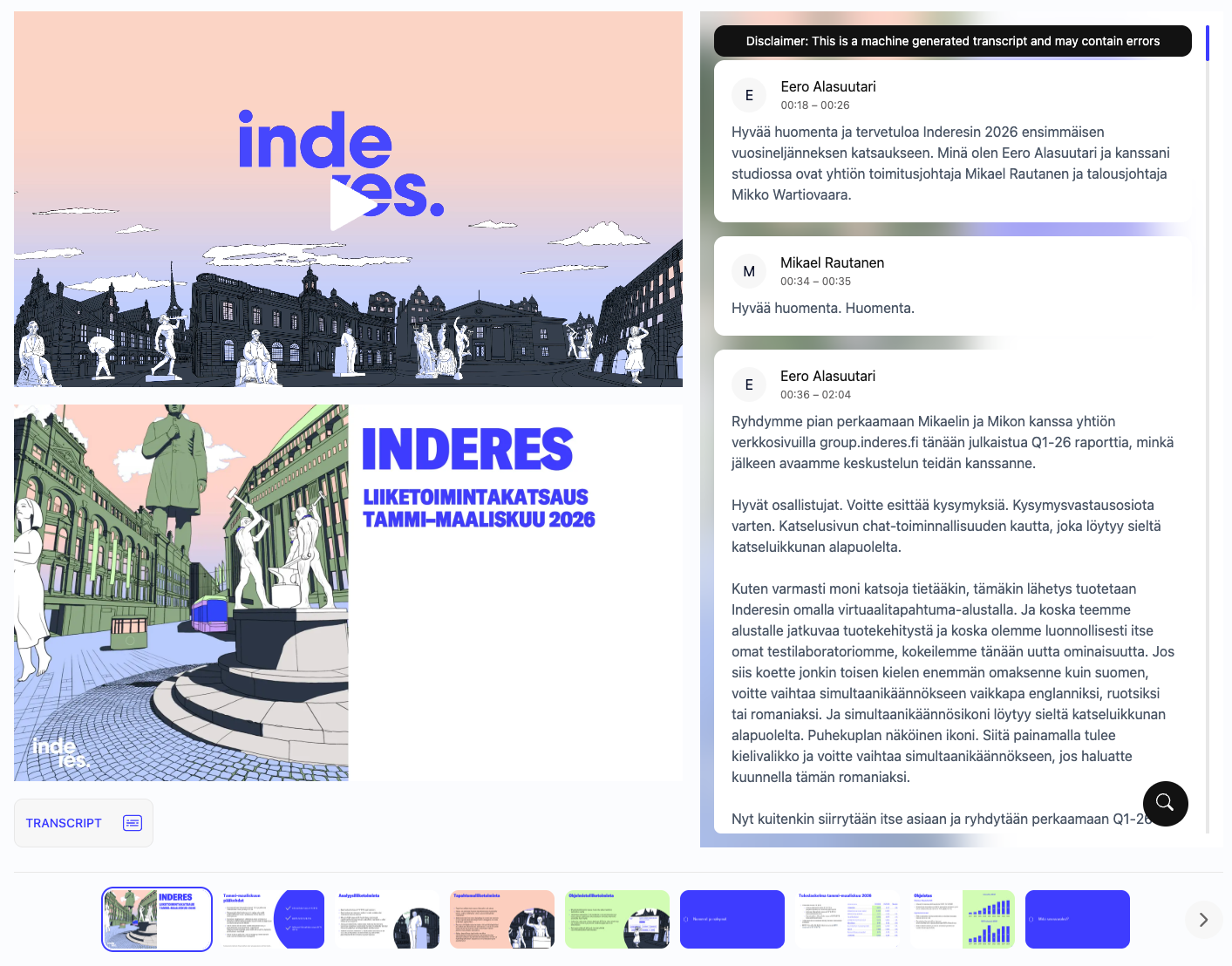
Nothing to upload when the event ends
However it starts, the recording is written on our servers while the event runs. Whatever has gone out is already saved, there is no local file to go missing, and there is nothing to upload once you are done.
Automatic in Web Studio
A Web Studio event starts recording on its own the moment it goes live. On the RTMP path you start it yourself from the control room, which also means a rehearsal or a long pre-roll never has to end up in the file.
Server-side, not local
The recording is written on our servers rather than in your browser or on your machine. What has already gone out is safe, and there is no file sitting on somebody's laptop that has to be found and uploaded afterwards.
Ready the moment you stop
When the event ends, its page moves into an Edit recording state on its own. The audience sees a placeholder where the video will be, and nothing goes out until you switch the page to Publish recording, or let a scheduled Premiere do it for you.
Cut, chapter and time it, right in the browser
The recording is editable the second it is captured. No re-uploading to a separate tool, no waiting on a render.
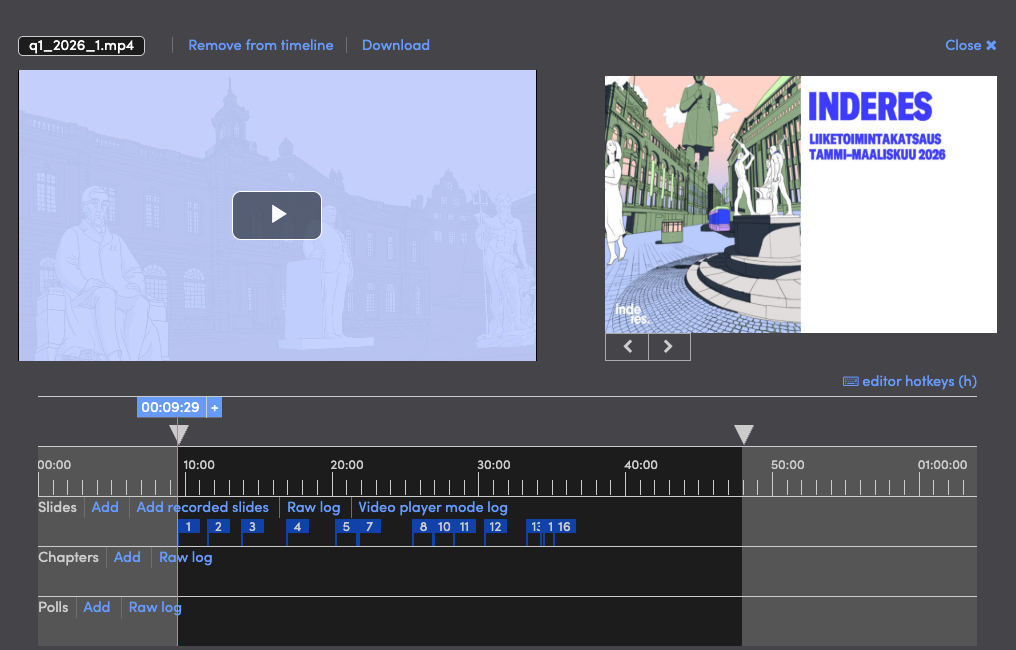
Trim and cut
Drag a clip's start and end markers to tighten it up. To lift a section out of the middle rather than the edges, split it into two clips, trim the tail of the first and the head of the second, and the editor stitches them back together.
Chapters
Mark them live from the control room as the event happens, or add, move and remove them afterwards in the editor. Viewers use them to jump straight to the part they need instead of scrubbing the whole recording.
Slides
Whatever showed live syncs into the recording automatically. If the wrong one made it onto the screen on the day, swap it afterwards without re-cutting the timeline around it.
Polls
Choose which poll questions and results reappear for on-demand viewers, and exactly when: timed to the same moment the room voted, not dumped at the start of the video.
Export and download. Reprocess the video's bitrate, resolution or audio if the export needs it, then download the finished MP4 straight from the editor. Once a recording publishes, a full written transcript generates automatically: speaker labels included, searchable, and exportable. Subtitles carry over from the live event, and further languages can be ordered for the recording through a built-in integration.
Record it now, publish it on your own schedule
Not every recording has to start as a live event. Capture it ahead of time instead, and decide afterwards how your audience meets it.
Recording mode
Record a session in Web Studio without broadcasting it live. The event stays in its pre-event state the whole time, so you get a clean take on your own schedule and publish it when it's ready, or not at all.
Premiere
Turn a finished recording into a scheduled event instead of a static replay. The video plays out at the announced time, any slides or polls you indexed activate right on cue, and the audience's chat and questions run live alongside it, even though the video itself isn't.
When one event becomes many
A published recording already has a home on its own event page. The library is what you add when there are many of them: one branded, searchable place where an audience can browse everything you have ever broadcast, rather than keeping track of one link per event.
Explore the On-demand LibraryQuestions about Recording
Is the event recorded automatically, or do I have to start it?
It depends on how you produce it. A Web Studio event records automatically from the moment it goes live. On the RTMP path you start the recording yourself from the control room, which also means a rehearsal or a long pre-roll does not have to end up in the file. Either way the recording is captured server-side, there is no manual upload step, and it is ready to edit and publish within seconds of the event ending.
Can I record something without making it public right away?
Yes. Web Studio's Recording mode captures a session while the event stays in its pre-event state, so nothing goes out to an audience while you are recording. You can get a clean take on your own schedule and publish it later, or discard it and go again.
What can I change in the editor, without another piece of software?
Trim or cut a clip by dragging its start and end markers, or lift a section out of the middle by splitting the clip and trimming each half. Add, move or remove chapters and slides. Choose which poll results reappear, and exactly when, for on-demand viewers. Then download the finished MP4 straight from the editor's export panel.
Can a recording become a live-feeling event later?
Yes, that is Premiere. Publish a finished recording at a scheduled time, and any slides or polls you indexed activate right on cue as it plays, while the audience's chat and questions run live alongside it.
Do subtitles and a transcript come with the recording?
Subtitles carry over from the live event onto the recording, and a full written transcript generates automatically once the recording publishes, speaker labels included, searchable and exportable. If you need the recording subtitled in further languages, those can be ordered through a built-in integration rather than handled outside the platform.
What is the difference between Recording and the On-demand library?
They are not two files. In the platform, on-demand is simply what the recording is called once it is published, and it stays on the event's own page. The library is a separate feature: a searchable, branded archive that collects every published recording in one place, with its own access controls, so audiences can browse past events instead of hunting for individual links.
See it in action
Get a personalized demo and see how Videosync can work for your organization.